This is a review of the BenQ ideaCam S1 Pro, a full featured WebCam designed for teleconferencing and other video recording application. In this day and age of remote conferencing a good camera can make the difference between a good and a mediocre impression. Of course, as a miniature painter and hobbies, who makes content both for this blog on YouTube channel, a versatile webCam can also have some pretty fun applications too.
In this article, I review both the ability of the BenQ ideaCam S1 pro to serve as a webcam for online teleconferencing as well as a hobby camera designed to create content for the miniature painting community.

Thank you to BenQ for sending me a review copy of the BenQ ideaCam S1 Pro. This is a rolling review and will be updated as I gain more experience using this system.
Summary (TL;DR): Key Points of the BenQ ideaCam S1 Pro Review
- Video Quality: Better than standard webcams but not as high as premium devices; produces somewhat grainy and muted output.
- Enhanced Usability: Includes accessories like a remote control, LED light, and macro lens for ease of use and versatility.
- Software and Connectivity: Direct computer connection with comprehensive software, ideal for detailed hobby documentation or streaming.
- Target Audience: Ideal for hobbyists and content creators who prioritize convenience and software features.
- Value: Offers good value through features and flexibility at a $200 price point, rather than top-tier video quality.

What I Want in a good webcam (Topline thoughts)
Quality, quality, quality.
Does this BenQ ideaCam S1 pro produce good quality video? It does but only if you compare it to generic webcam systems. For example, it produces somewhat better video quality output than the small camera built into my iPads and cheaper PC laptops. This is to say that the video is somewhat grainy with muted colors.
Good lighting makes everything better
You’ll get better quality output if you have good lighting. Note that if you’re using the built-in LED ring light of the BenQ ideaCam, you may get better quality output but I didn’t notice too much of a difference in my real world use. Though admittedly, I already have pretty good ambient lighting around my work areas.

As someone who already uses an iMac and MacBooks that have built-in WebCams, my expectations were already pretty high. Apple already makes built-in webcams in their computers that produce high-quality and reliable output. Of course, this all comes out at the more expensive cost of the Apple product.
Content creator?
For those interested in recording videos or creating content for hobbies like miniature painting, this webcam might have limited appeal. Your smartphone, such as an iPhone, could potentially offer equal or better video recording results. However, a key advantage of the BenQ ideaCam is that it connects directly to your computer, allowing access to its comprehensive accompanying software to enhance your still life, recording, or videography projects.

Other notable features that come with this camera is also a handy remote control that can control most commonly used aspects of the camera without you touching the unit. Overall, the package offers more than the sum of its parts. With less expensive webcams, you might not get all these features and accessories. The BenQ ideaCam offers convenience and flexibility as an single kit system.

In summary, given that the BenQ ideaCam costs around $200, it’s not merely the video quality that you’re investing in, but rather the combination of features and the utility of the useful, accessible software that accompanies the camera.
Read on for more of my experience working with the BenQ ideaCam across a range of applications.
First Impressions
First impressions matter. I’ve reviewed other BenQ products, and they’ve all come in Apple-esque style packaging—minimalist, modern, and bright.

The BenQ IdeaCam arrived in a cardboard box, the typical paper-material stuff you’d find. But inside was the white, clean package with the simple logo and label for the camera.

Upon opening, I was greeted by a neat origami layer of material. Tucked under this was the camera and its accompanying accessories embedded in a soft gray foam.

The BenQ ideaCam comes with the camera, a lens cap, a mounting clamp to attach the camera to your computer screen (or use with a tripod with a 3/8-inch screw mount), a magnifying glass attachment (a 15x zoom), the usb-c power cable, and the remote control (which includes the two AA batteries).

Material Quality
The entire camera and remote control, the two main components of the kit, are made of plastic. It’s the prototypical ABS type plastic you’ll find on most common electronic tech gadgets. From my impression, it’s durable and looks and feels good to the touch.

The camera and mount aren’t heavy. The cable is durable and long enough for you to move the camera about wherever you need it. Given that you can also use the IdeaCam Handheld (unmounted), this longer cable was helpful.

The magnifying glass attachment, which lets you use the macro capabilities of the camera is also made of plastic, even the lens. I didn’t find any issue with this. But I’ll just note that you’ll want to be careful as plastic is easy to scratch if it isn’t handled well.
Don’t clean the lens—the web camera itself or the magnifying lens—with just any cloth or paper towel, for example. Use something like a microfiber cloth for camera lenses or disposable lens paper.
For a camera this expensive, you’ll definitely want to care for it.
Attaching the Camera to your Computer Monitor is Easy
I didn’t really have to read the instructions to learn how to mount the camera to my computer monitor. The Quickstart guide does show you how to mount the camera pretty easily, though if you need that help.
To mount the camera, take the clamp, and swing it open. Place it over your monitor—near the center of the screen is where I placed mine. Then making sure the clamp is resting properly, close the clamp, and use the locking knob to tighten the clamp.

Under the camera, you’ll see a slot where you can insert the clamps “key”. Once you place the camera in the slot-key, you can swivel the angle of the camera up and down.

You can point the camera downward…or at your face
The design is such that you can angle the camera so it faces you directly, a frontal view of your face, or point the lens down toward your desk. In the downward angle, you can photograph or film whatever you’re doing on your desktop.

I can see a lot of applications for the downward pointing camera. I’d love to make videos of me sketching or drawing or painting miniatures. While the quality isn’t great—more about this below—I’d use this camera in a heart-beat for those pieces of content I want to make quickly and efficiently.
A Note About the Built-in LED Ring Light
A helpful feature that some of you may appreciate with the BenQ ideaCam S1 Pro is the built-in LED ring light. While it’s not terribly bright from a distance of more than a few feet, it does produce a fairly bright diffuse light that is useful for filling in shadows across your face or other subject.

Of course, the LED ring light on the camera doesn’t come close to anything as powerful or useful as a separate, high CRI LED ring light dedicated for a photography studio (and for which I’ve reviewed several for miniature photography).

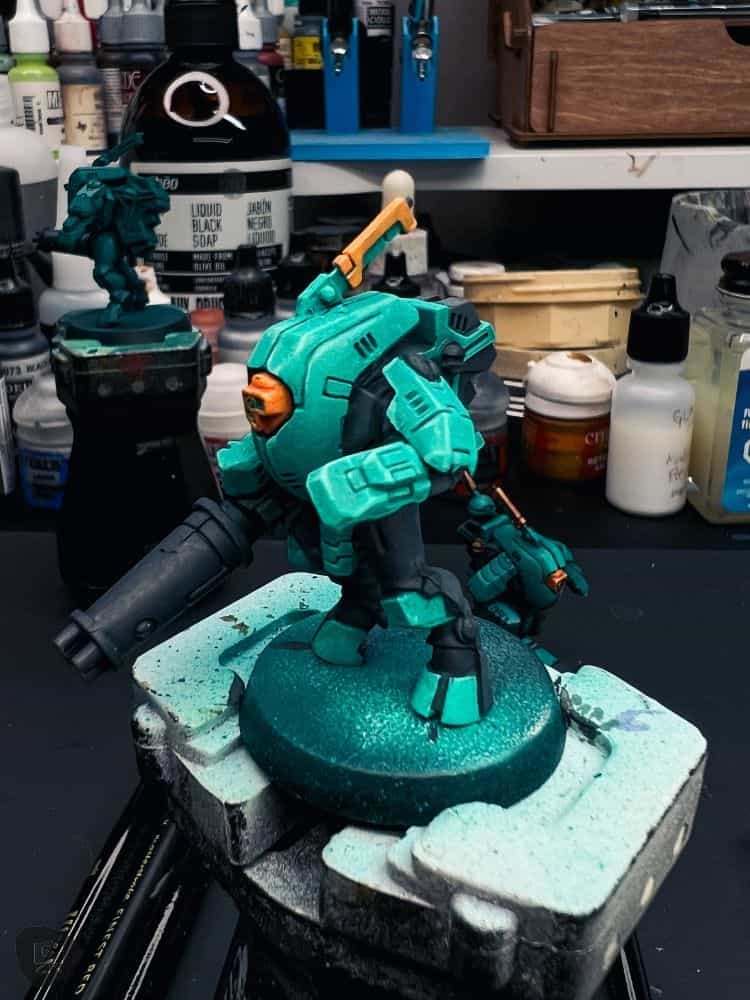
But, if you’re looking for a quick fill light, especially for close subjects placed near to the camera, the LED ring light will work just fine. I do wish the light could be turned on or off using the remote control. This is an area that could be improved.
For now, to turn on/off the LED ring light on the ideaCam, you’ll have to press a button located on the top of the camera. It is conveniently located, and useful, too when you’re using the camera handheld.
A Noise-Cancelling Microphone, Too
If you’re looking to use this camera for teleconferencing or virtual meetings of some sort, there is a built-in noise-cancelling microphone. It’s not as good as a dedicated headset or something you’d want for premium quality podcasting, but for online meetings or simple live streaming, I had no problems with this microphone.
But, in my honest opinion, the microphone produces average sound, the kind you’d expect with a webcam that had a microphone. It’s not the camera’s best feature. At the same time, it’s one of those things you’d expect on something like this and it does work fine.
The Remote Control Does Make the IdeaCam a Better Product
I found the remote control the one of the best accessories for the BenQ ideaCam. With the remote control “puck” as it’s called, you can control many of the common functions of the camera without touching your computer or the camera itself.

Start and stop a recording or video stream. Freeze a frame while in video mode. Take a still life photo. Switch between autofocus and manual focus. In the latter, you can use the turn the puck to re-focus on your subject.

You can even use the remote control to digitally zoom towards your subject, up to 50x—I write more about this below versus using the magnifying glass attachment. Finally, you can mute the microphone on the BenQ ideaCam using the remote. All of these functions are handy and I used all of them while testing out the camera.
Remote limitations
One drawback, however, with the remote is the use of a USB dongle to wirelessly connect the system to your computer. I have never been a fan of taking up a USB slot on a computer to get things to connect. I much prefer bluetooth connections.

Also, that USB dongle can get lost. Even though there is a storage slot underneath the remote control puck, that you can tuck the dongle into, the dongle is still an accessory that could get misplaced. As an Apple user, I much prefer the clean, uncluttered desk, free from all those wires and extra peripherals that stick out of the computer.

Oh, and I expect you’ll need to replace those batteries in the remote at some point in the future.
Optical Magnification versus digital magnification (handheld use of the BenQ IdeaCam S1 Pro)
An aspect of the BenQ ideaCam that I did not expect to enjoy as much as I did was the magnifying glass attachment. Because the ideaCam can be handheld, you can move it wherever you need it.

If you’re someone who is on a virtual call and wants to show your viewers on the other end some object or surface, but moving that something isn’t easy, you can bring the camera to your subject instead.

For those who are content creators, you may find this flexibility helpful in gathering unique perspectives. Are you sketching something and want to zoom in or show a different angle? Simply pick up the camera and move to where you want it.

Importantly, unlike other webcams, you don’t need to rely on digital zooming to “fill your frame”. Digital zoom essentially crops your sensor-captured image, reducing the quality and resolution. Things get really grainy and unpleasant when you’re using a digital zoom feature.
The digital zoom isn’t that great
The BenQ ideaCam with the remote control puck or within the Enspire software allows you to digitally zoom up to 50x. While this may appear powerful, the quality of your video or image will suffer, as I’ve learned from using other “cheap camera systems”.

To get around this this S1 Pro uses a magnifying glass attachment that optically zooms up to 15x. When I used this system, I captured some really good magnified (i.e., macro) images and video of my miniatures.

The resolution and the details remained, and I was super impressed with how well this magnifying glass worked along with the BenQ ideaCam. While I still have to learn how to apply this in my workflows, knowing that this macro level photography and videography with the BenQ ideaCam is available is refreshing.

As someone who is creative and always looking for new ways to film and photograph things, I’m probably going to find fun applications for this magnifying glass feature of the BenQ ideaCam.
Quality of Still Images and Video (for Teleconferencing)
As an avid photographer and maker of YouTube videos, I’ve got a keen eye for details, clarity and color in all the content I create for people. I’m a stickler for good image-making.

Well, did the BenQ ideaCam meet my high standards for image-making and video work? Not exactly.
It actually takes a bit of tech for any camera and its sensor to produce good images. Even at more than $200, a webcam would require several things for it to create images that reach the quality of a dedicated camera. Bigger, more sensitive sensors, for example.
Even smartphone cameras do a better job than most webcams nowadays. Of course, you’ll have to take into account that dedicated camera and smartphones are many fold more expensive than a webcam.
Maybe it is worth it, but only if…
So, if I take a step back to temper my expectations, I would say that if you compare the BenQ ideaCam to other webcams you can get, it produces images that are “good enough” for most virtual teleconferencing needs.
The color and resolution of the camera produces decent video transmission and recordings with decent lighting. I used the ambient lighting around my Apple iMac for the first few tests. And, with this “normal room lighting condition”, the BenQ ideaCam did a decent job. It wasn’t better or worse than the built-in webcam for my computer.
Filming my miniature painting with the BenQ ideaCam S1 Pro
Okay, let’s get something straight. As you’ve probably noticed so far, the quality of the BenQ ideaCam footage isn’t going to win awards for quality. I’ve been working with professional camera equipment for years, and my expectations for what makes good visual content is very high.
As such, I did feel a tad disappointed in the quality of the footage with the BenQ ideaCam when it came to filming my miniature painting process. I mounted the camera above my painting hobby desk, as you can see in the images.

Optimization efforts failed to offer better results
Even with some of the best task and studio lighting you can buy for hobby work, the BenQ ideaCam struggled to maintain good exposure that didn’t blow out the highlights. When I lowered the exposure settings for the camera to avoid over-saturating the bright surfaces in my image, I lost a lot information into the shadows.

Suffice it to say, the BenQ ideaCam has a fairly limited dynamic range which makes it hard to use for filming scenes that have a very bright and dark areas in the same field of view.
How about the color quality of the BenQ ideaCam S1 Pro footage?
While I didn’t expect much from the auto white balance (AWB) and color accuracy of the camera, this is also an area that didn’t meet my threshold for “good enough” for filming miniature painting.
(This aspect of the review will continue to be updated as I collect more footage with the camera)
In general, I think the BenQ ideaCam is best suited for those teleconferencing needs where you need to switch from portrait (speaking head) type streaming and documenting simple things, like a sketch on paper or notes that are hand-written on a document of some sort.
To summarize, when it comes to creating content for public consumption, the BenQ ideaCam falls short for those of us who are looking for an all-in-one camera system.
I would recommend instead that anyone looking to create hobby content, e.g., filming their art process, to look elsewhere. Yes, you’ll likely need a higher budget. But, when it comes to value, this is not an area where the BenQ ideaCam S1 Pro excels.
The Enspire software is easy, powerful, and flexible
To get the most of the BenQ ideaCam S1 Pro camera, you’ll want to download the Enspire software package (available for mac or PC). In a few clicks, I had the software installed and played around with it.
For anyone who has worked with computer video software before, the Enspire software is intuitive. You can learn more about the software features on the BenQ site.
For now, here’s my take for those of us who may want to see how this could apply to the miniature painting hobby. And, here are five ideas for how you could use the Enspire software that accompanies the Benq ideaCam that you may find interesting to use for recording/filming your hobby or art work—granted there are limitations to this that I mentioned above.
- Smart Annotation: This feature allows miniature painters to save notes and annotations directly on images. This can be particularly useful for documenting the mix of paint colors, noting techniques used for certain textures, or recording step-by-step processes for future reference. It serves as a digital journal, capturing insights and observations that can be revisited and used to refine techniques over time.
- Picture-in-Picture Screen: By displaying reference images simultaneously while painting, this tool helps miniature painters accurately replicate colors, proportions, and details from a concept art or a real-life example. It allows for continuous visual comparison, which is crucial when striving to achieve high fidelity to the original design or when attempting to maintain thematic consistency across multiple figures.
- Split-Screen Functionality: This feature enables painters to work on multiple projects side-by-side or to compare different painting stages without the need to switch views constantly. For instance, a painter could display a partially completed figure next to a fully painted one to ensure consistency in color and style, or compare various armor styles side-by-side for a cohesive army build.
- Instant Freeze: This functionality allows painters to quickly freeze images to focus on intricate details, which is particularly useful when you want to capture your work on complex miniature parts such as faces, intricate armor, or detailed weaponry. For viewers, you may want to pause steps while you’re working or during a recording. This could help maintain consistency, especially when working across multiple sessions or when detailed work is interrupted.
- Visual Scale Measurement: For miniature sculptors, clay modelers, or even painters, maintaining accurate proportions is probably super important, especially when working with figures that need to fit into specific scenes or dioramas. This tool provides a visible guide for the scaling of designs, ensuring that each part of your subject—e.g., from weaponry to armor to embellishments—is proportionally accurate. While I haven’t used this to its full potential, and will likely try my hand at sculpting at some point, I think some of you may find this a good tool. It’s easy to use.
What is the BenQ ideaCam S1 Pro Best suited for? Limitations?
From my experience working with the BenQ ideaCam S1 Pro, it’s an average webcam with a lot of useful features and a powerful software package. As I dig into it, the BenQ ideaCam S1 Pro is best suited for users who value convenience and flexibility in a webcam setup, particularly when combined with its comprehensive software package and various functional accessories. Although it may not provide the highest video quality compared to dedicated cameras or high-end webcams, it offers a robust set of features that can significantly enhance user experience in specific contexts.

The BenQ ideaCam is a fair balance of strengths and limitations
One of the camera’s most notable strengths is its ease of integration into various setups, thanks to its mounting options and the intuitive Enspire software. This software extends the camera’s usability beyond basic video calls, making it suitable for users who need to document or stream their work, such as in miniature painting or other detailed hobbies.
The addition of features like a remote control, built-in LED ring light, and macro magnifying glass attachment further enriches its functionality. These tools allow for greater control and versatility, enabling users to adjust the setup without physically interacting with the camera, which can be particularly useful in environments where maintaining focus and frame is crucial.
However, for users primarily concerned with high video quality for professional content creation, the ideaCam might not meet their expectations. While it offers good performance in well-lit conditions, it struggles with dynamic range and color fidelity compared to more specialized or expensive equipment. Thus, it’s more appropriate for casual use or as a secondary camera for specific tasks rather than as the main device for high-quality video production.
Summary Pros and Cons for the BenQ ideaCam S1 pro
| Pros | Cons |
|---|---|
| Ideal for flexible setups with accessories. | Not on par with dedicated cameras or high-end webcams. |
| The Enspire software enhances functionality. | Struggles with dynamic range and color accuracy. |
| Integrates easily into various setups. | Better suited for casual rather than professional use. |
| Accessories add significant versatility. | Best for specific scenarios, not advanced imaging needs. |
| Effective in well-lit conditions. |
In summary, the BenQ ideaCam S1 Pro is a practical choice for users looking for a versatile, feature-rich webcam for everyday use and basic content creation. Its strength lies in its software and hardware integration, ease of use, and the convenience of features like digital zoom and remote control, making it a flexible tool for varied applications beyond just video conferencing.
Conclusion
So there you have it, my impressions and experience with the BenQ ideaCam S1 Pro. It’s not inexpensive, but the camera comes with a host of features, accessories, and software that bring a lot of utility and flexibility to your office/table/workspace. Since this is a review of a camera “system”, I expect that my opinion of this product will develop with time. Certainly, stick around and be sure to check out my updates with this review over time if you’re curious.
I hope you found this review helpful! If you have specific questions or feedback about my experience working this camera, please let me know with a comment below or contact me. I’d love to hear from you!
Enjoying Your Visit? Join Tangible Day
Free newsletter with monthly updates (no spam)


Tangible Day on YouTube (Miniatures and More!)