
For miniature painters who want to share their work, or gamers that want to record their battle reports, capturing sharp and clear images is pretty important. The best way to take miniature photos is to keep your entire model sharp. You can also use a technique called “Focus-Stacking” to help you post-process your images to create awesome photographs of your models.
In this article, I show you how to use focus-stacking to improve the quality of your miniature and models photos. Want more realism or “pop” in your images? Check out the focus stacking tutorial below!

Summary: Focus Stacking Miniature Photos
| Step | Description |
|---|---|
| 1 | Setup: Set up your model in a lightbox or controlled environment, use a tripod for stability. |
| 2 | Manual Mode: Set your camera to manual mode, turning off autofocus. |
| 3 | Initial Focus: Focus on the nearest part of your model and take the photo. |
| 4 | Adjust Focus: Manually adjust the focus slightly farther on the model and take another photo. |
| 5 | Repeat: Continue adjusting the focus and taking photos until you’ve covered the entire model. |
| 6 | Upload Images: Transfer all your images to your computer. |
| 7 | Convert Files: Convert the images to JPEG or TIF files, depending on your computer’s capability. |
| 8 | Import to Photoshop: Import the images into Photoshop, each as a different layer. Steps 8-9 use Photoshop software. |
| 9 | Auto-Align: Select all layers and go to Edit > Auto-Align. Choose “Auto” and click “Ok”. |
| 10 | Auto-Blend: Select all layers again and go to Edit > Auto-Blend. |
| 11 | Merge Layers: Select all layers and merge them by going to Layers > Merge Layers. |
| 12 | Crop Final Image: Crop the composite photo to remove blank spaces and re-compose as desired. |
| 13 | Adjustments For Focus Stacked Photo: Adjust brightness, contrast, and color as needed. |
Focus stacking in 13 Easy steps
1. Setup your model in a light box or other controlled situation, and use a tripod
If you don’t have a tripod, you’ll have to hold your camera steady and do your best to keep your subject in the same place within your frame shot-to-shot (i.e., so you don’t need to do excess re-alignments later in post-processing steps – see steps below).


2. Set your camera on manual mode (turn off autofocus)
You can use autofocus, but I find my ability to determine what’s in-focus is more accurate and predictable if I do it without the help of the camera).
If you are able to check your depth-of-field with a function button on your camera, then you can try and use that in the following step.
3. Focus on the nearest part of your model, then take the photo
Because you’re shooting with a high aperture (or small f-stop number), you should get nice blurry out of focus areas.

4. Repeat step #3, but this time focus manually a little farther on the model
Your next photo should have the focus area on a part of the miniature a bit further back away from you.
Parts of the model that you photographed earlier should now be blurry.
But, don’t focus too far back. Make sure there is overlap in the focused area on the model with the next photo you take.
5. Repeat steps #3 and #4 until you’ve focused through the entire model.
You should have a series of multiple images.
Each individual photograph of the model should be sharp on a different part. If you’re not sure what I mean, see the photos I took below.


For me, it takes between 3 to 8 photos to complete the series of images I need to get what I want to include in the final composite image.
You can take as many images as you like for the image series, but be aware that more photographs you include in the process, the more computer power you will need.
6. Upload all your images into your computer
Take all your image files from your camera and upload them into your computer hard drive.
7. Convert the images to JPEG or TIF files
If you can afford the computer power, use TIF files, which contain more photographic information for you to play with, e.g., if you want to add instagram filters, etc. For those of you having trouble with the large format with TIF files, you can use JPEG image files. JPEG images are a compressed format, i.e., contain less information, but should still look great even after you focus stack them.
8. Import them into Photoshop with each image from your series as a different layer
I assume you know how to do this for this article. But, if you don’t, this is a good resource (link) for understanding how to do this easily in Photoshop (the process is similar across all versions).

9. Select all the layers; then, go to Edit>Auto-Align


It’ll take Photoshop some time to auto-align your images (which are now layers).
This process usually works without any manual input.
However, if you were not able to use a tripod and keep your subject aligned as you took your photos (in step #1), then you may need to try and align the layers manually first (using the free transform tool), then try auto-align again. If this doesn’t work, you may need to re-take the photo series, or delete the images within your series that are giving you problems.

10. Select all the layers again; then, go to Edit > Auto-Blend

11. Select all the layers and merge them; Then, go to Layers>Merge Layers


12. Crop the composite photo you merged
There will be areas around your merged composite image that are blank empty spaces. Use the crop tool to cut those parts out, and, if you like, re-compose the focused stacked composite image.

13. Adjust brightness, contrast, color, etc., if needed

Optimize Group Shots with Focus Stacking
I have had trouble photographing multiple models (units/infantry) together in my lightbox because of how hard it can be to get everything in focus. You can certainly use a smaller aperture, if your camera allows it.
But, I find that one of the problems with this approach is that your depth-of-field is so deep that you lose some of the “3D-pop”. I think this is because your backdrop also becomes really sharp. A big part of the beauty of fast lenses or blurred background (aka bokeh), is that your subject stands-out.

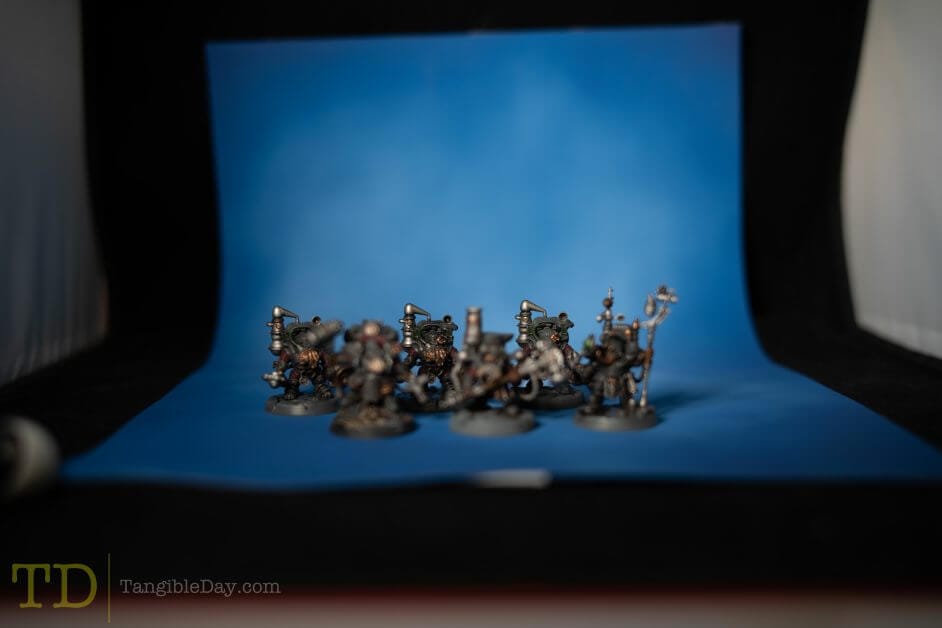
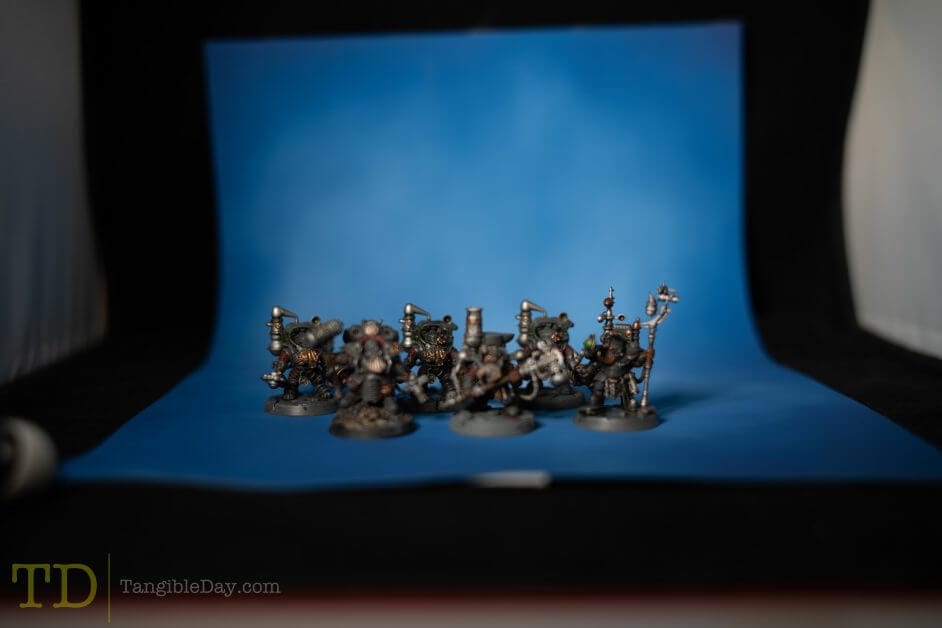
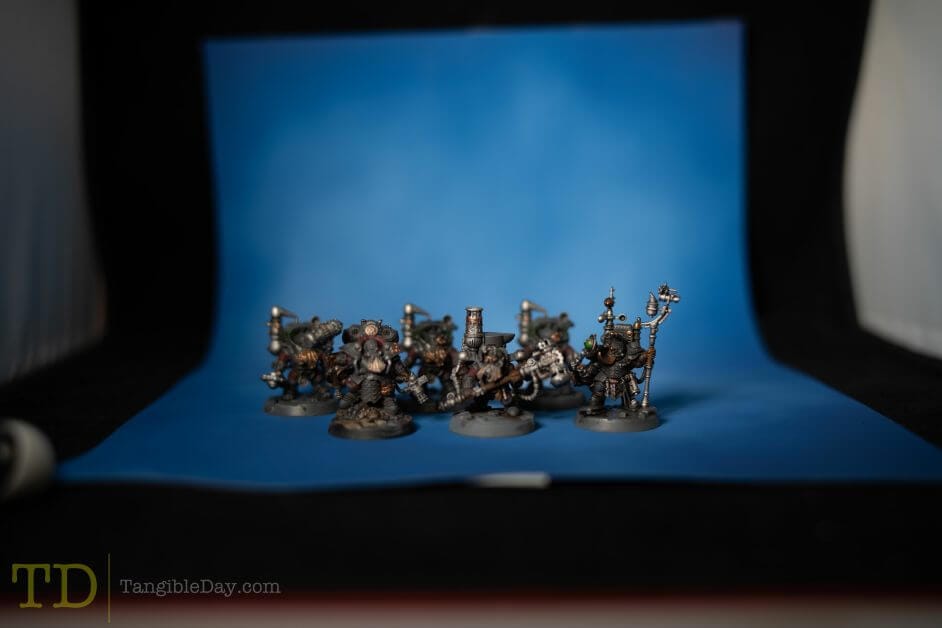


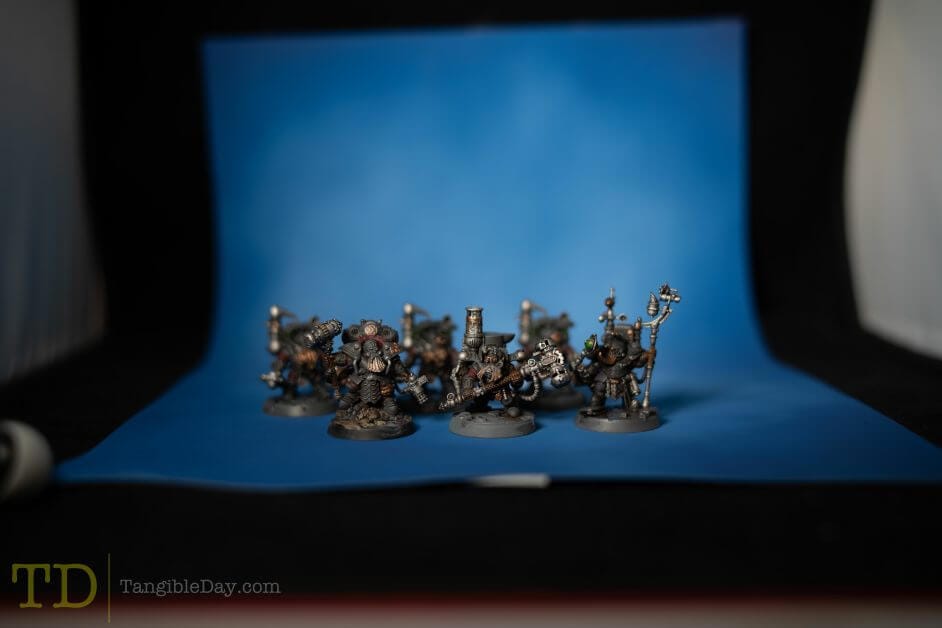

Focus-stacking lets you control how much background blur you keep in your photos; whilst keeping your miniatures tack sharp. With a bit of creativity, these final images have a bit more 3D-pop than a single photo.


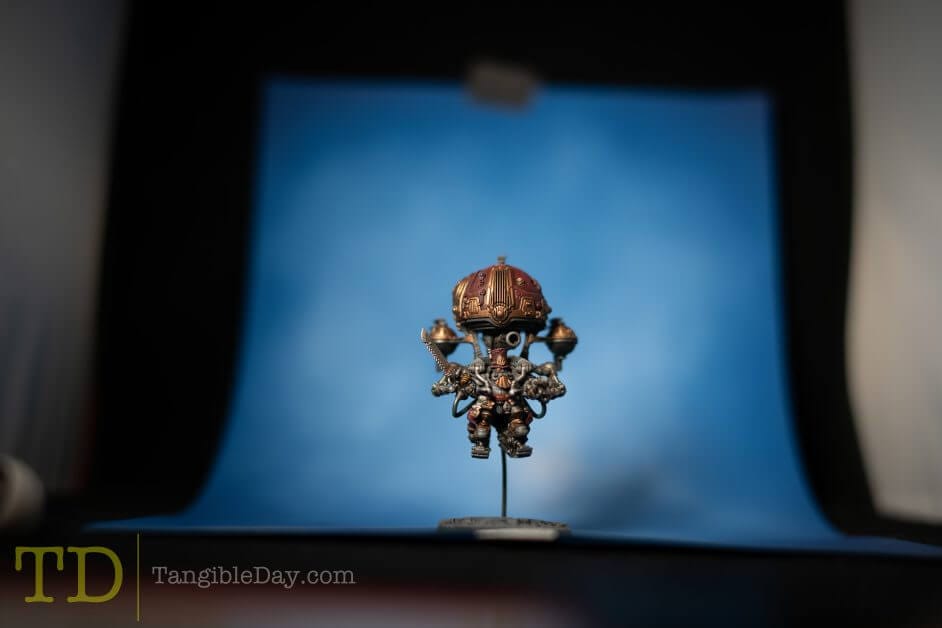


(I used photoshop to erase the flight stand)
Conclusion
And, there you have it! Focus stacking can help you get better, sharper photos of your miniatures, group shots, and battle reports. If you’re having trouble maintaining focus on all the parts of your models with your camera, focus-stacking is a great method to overcome this issue.
I hope you found this tutorial helpful. I’m sure some of you may have questions. I’d love to hear from you! Leave a comment below.
Enjoying Your Visit? Join Tangible Day
Free newsletter with monthly updates (no spam)

Tangible Day on YouTube (Miniatures and More!)

Awesome tips. I’m always looking for ways to improve my photography and this helps a lot.
I’m getting excellent results using an iPhone XR with attached Moment lenses. I use CameraPixels to focus bracket up to 50 images and Affinity Photo to focus align and merge them.
thats awesome – the new iphones are great cameras
Are those apps? Amazing!
Yes, CameraPixels is a $6 app in the Apple Store that runs on iPhones. It automatically focus brackets up to 50 images over the iPhone lens displacement from 0.00 to 1.00 (0 to 100 percent). Affinity Photo, one time $50, is an app that runs on iPads and Mac computers. It has similar capabilities as PhotoShop. It easily and reliability performs focus align and merging of the focus bracketed images.
Cool. I’ll check them out. Btw, full version of photoshop is coming to iPads this year!